

How it works
The Document Search interface provides simple controls for instantly resetting your current query and a memory function to quickly recover recently performed searches.
Clearing the Current Search
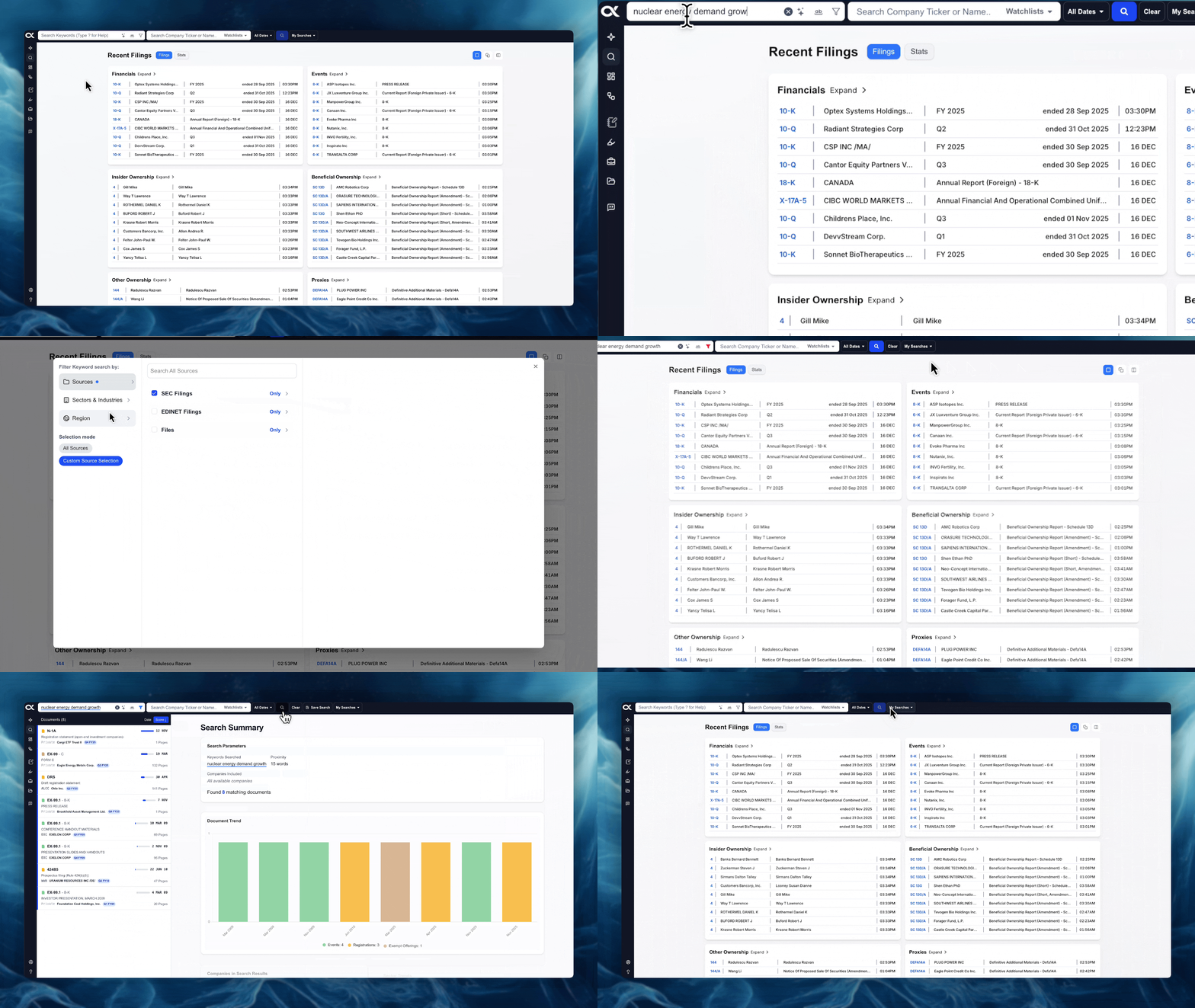
If you need to instantly wipe all current parameters and start a new search from scratch, use the Clear button.
-
Function: Immediately erases all active criteria, including keywords, entity/ticker filters, proximity settings, and date ranges.
-
Action: Click the "Clear" button, typically located near the search bars.
-
Result: The interface returns to its default state, allowing you to begin a new investigation using the Filing Navigator or a fresh Document Search.
Recovering Recent Searches
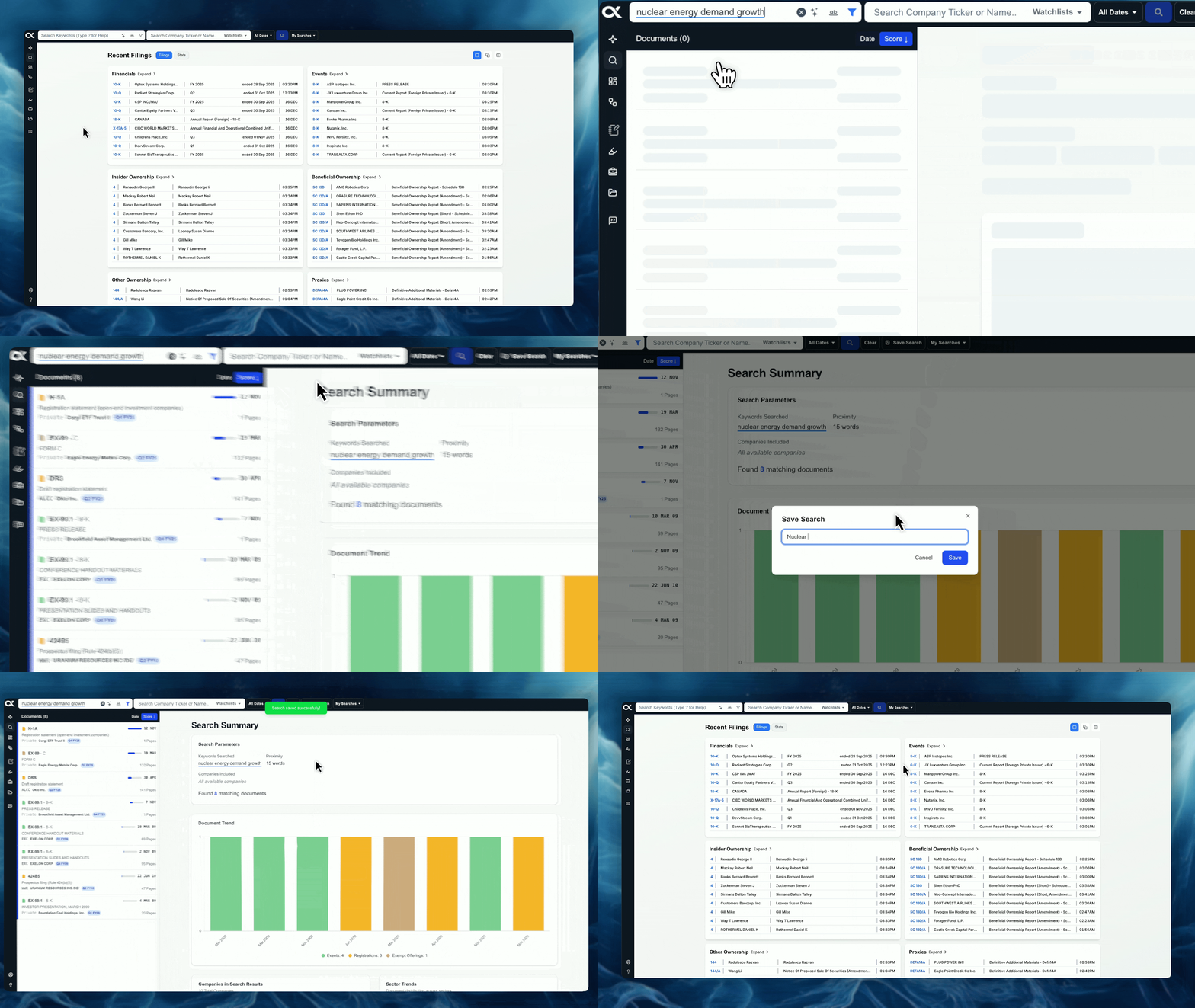
The platform maintains a temporary history of your most recently executed searches, which can be instantly re-applied.
-
Location: When you click into the main Document Search bar, a dropdown menu appears listing your Recent Searches.
-
Recovery: Clicking on a recent search instantly re-populates all associated parameters, including the keywords, company/Watchlist filters, date range, and source selections.
-
Benefit: This is useful for quickly jumping back into a complex search you were just working on, especially if you cleared it accidentally.
IMPORTANT NOTE: Temporary History
Remember that this recent search history is temporary and will eventually disappear or be overwritten as you perform new searches.
- Remember: If a search is important, contains complex criteria, or is one you need to revisit regularly, you must click "Save Search" (as detailed in the previous article) to ensure the criteria is permanently stored and available in My Searches or for Dashboard monitoring.