

How it works
The Document Search feature provides powerful tools to refine your keyword queries, ensuring you find the precise information you need across the platform's extensive document library.
You can achieve highly customized results by utilizing Keyword Operators and the AI Keyword Builder.
Using Keyword Operators
Keyword Operators allow you to build complex search logic directly into the search bar, dictating the relationships, proximity, and hierarchy of your terms.

- Accessing Operators: Type a question mark (?) into the keyword search bar to display a list of all valid operators.
| Operator | Example | Description |
|---|---|---|
| AND | revenue AND growth | Includes all specified keywords in the search results. |
| OR | merger OR acquisition | Includes documents containing any of the specified keywords. |
| NOT | debt NOT "long-term" | Excludes documents that contain the keywords following the NOT operator. |
| NEARn() | NEAR50("cost of capital" risk) | Searches for the keywords within a specified proximity of n words. (e.g., within 50 words). |
| "Exact" | "share repurchase program" | Finds only the exact phrase match, treating the words as a single unit. |
| (Group) | (revenue OR sales) AND growth | Operators inside parentheses are evaluated first, allowing you to establish a search hierarchy. |
| Prefix* | acqui* | Searches for any word starting with the prefix (e.g., acqui* finds acquisition, acquire, acquiring). |
- Use Case: To find documents discussing revenue growth specifically, but exclude mentions of sales, you would use:
(revenue AND growth) NOT sales.
Utilizing the AI Keyword Builder
The AI Keyword Builder transforms natural language research descriptions into optimized, complex search strings using the necessary operators automatically.
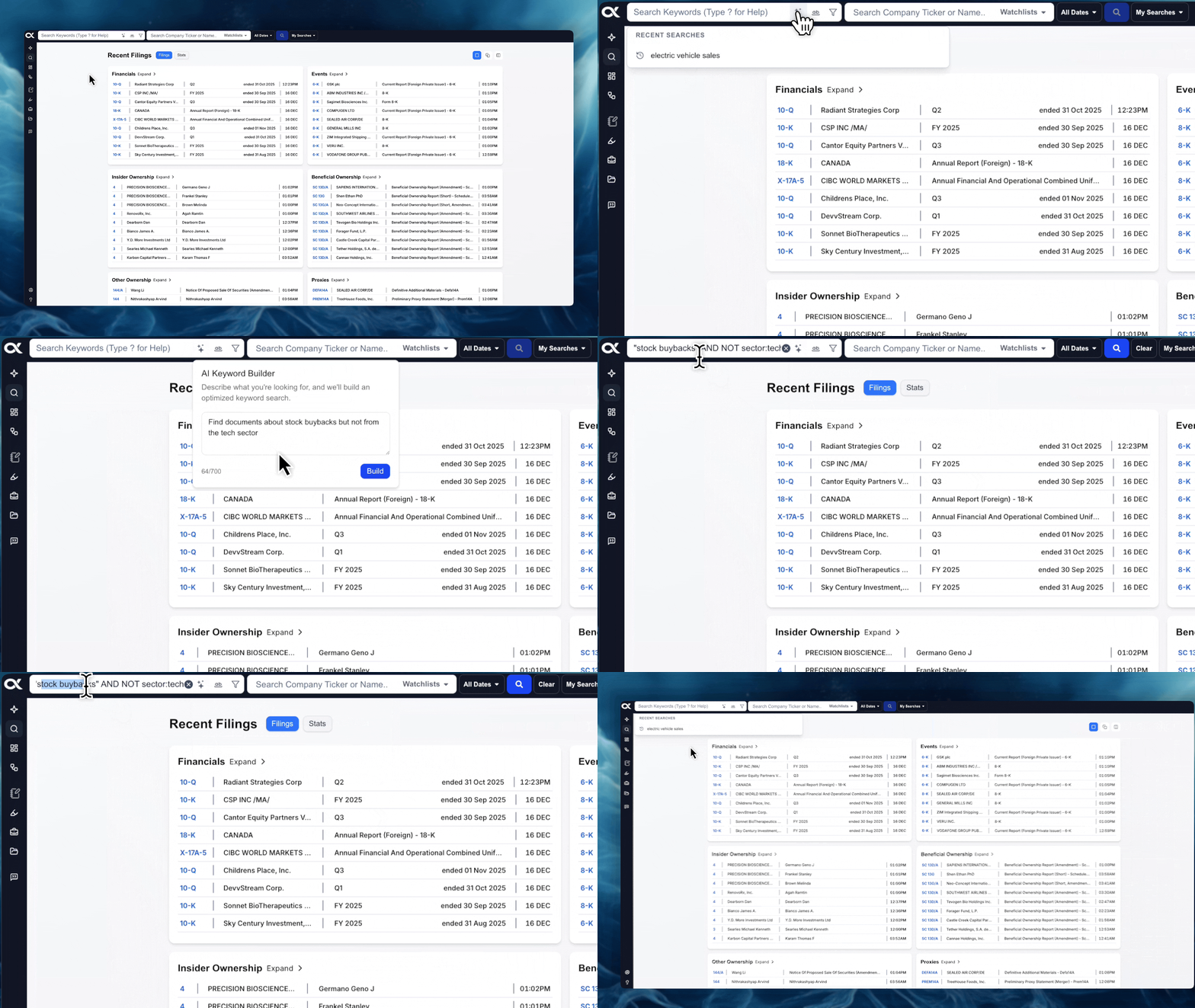
- Function: Describe your research objective in plain language (up to 700 characters), and the AI will construct a precise, optimized search query for you. This saves time and ensures correct operator usage.
- Access: Click the AI Keyword Builder icon (the first button on the right of the search bar, often resembling a brain or lightbulb).
- Process:
- Click the icon to open the builder window.
- Enter your description (e.g., "Find documents about stock buybacks but not from the tech sector").
- The AI generates the corresponding operator-based search string (e.g.,
("stock buybacks") NOT ("tech sector")). - The generated string is automatically populated into your main Keyword Search bar.
- Use Case: Instead of manually figuring out the
NOToperator, simply tell the builder what to exclude.
Keyword Proximity Setting
Controlling Word Distance for Focused or Broad Document Searches
The Keyword Proximity setting allows you to control the maximum number of words allowed between your search terms within a document. This feature is crucial for adjusting the precision of your search, ensuring that your keywords are mentioned close enough together to be contextually relevant.
Understanding Keyword Proximity
When you enter multiple keywords without using an explicit operator (like AND or NEARn()), the proximity setting determines how far apart those words can be and still qualify as a relevant match.
- Location: The Keyword Proximity tool is typically a small icon or dropdown located near the Document Search bar.
- Default Setting: The default is 15 words, which generally provides the best balance, often capturing terms within the same sentence.
Proximity Options
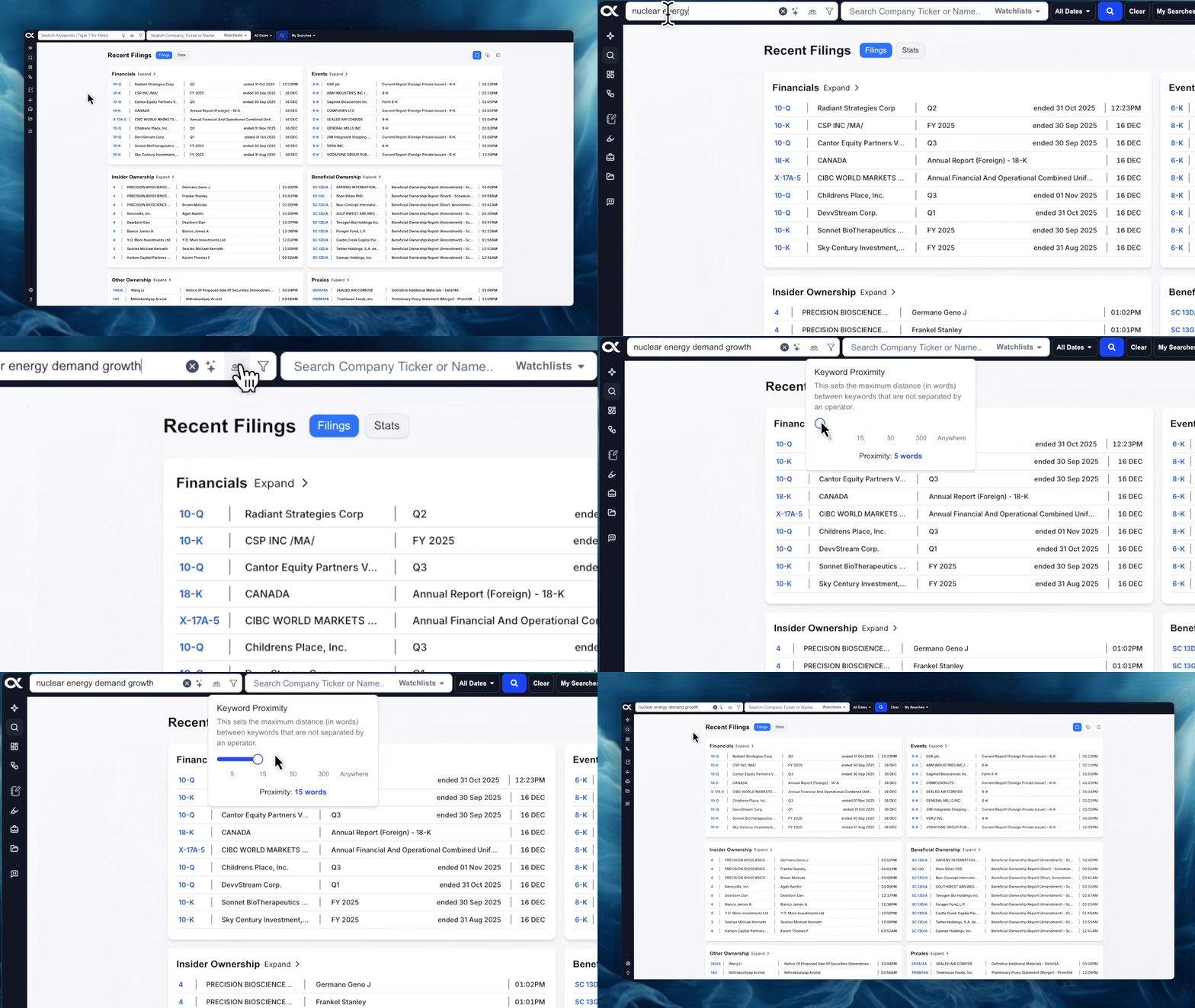
You can select from five different proximity settings to develop a more precise or wider search:
| Setting | Proximity (Words) | Contextual Relevance | Best Used For |
|---|---|---|---|
| 5 | Maximum 5 words apart | Highly precise, ensuring terms are tightly coupled. | Searching for closely related technical terms or short phrases. |
| 15 | Maximum 15 words apart | The default setting, capturing terms typically within the same sentence. | Balanced searches for main concepts and key discussions. |
| 50 | Maximum 50 words apart | Capturing terms within the same paragraph. | Finding related topics that might be discussed across several sentences. |
| 300 | Maximum 300 words apart | Capturing terms likely on the same page or section. | Broad analysis where general co-occurrence of topics is sufficient. |
| Anywhere | No limit | Finds documents where terms appear regardless of distance. | Ensuring no document containing all terms is missed (similar to a broad AND operator). |
Expert Tip: If you are finding too many irrelevant documents, decrease the proximity (e.g., from 15 to 5 words). If you are missing contextually relevant results, increase the proximity (e.g., from 15 to 50 words).