

How it works
The AI Chat interface includes dedicated functions to help you manage your research flow, allowing you to instantly submit queries, start fresh discussions, and easily access or manage your past research history.
Submit Chat
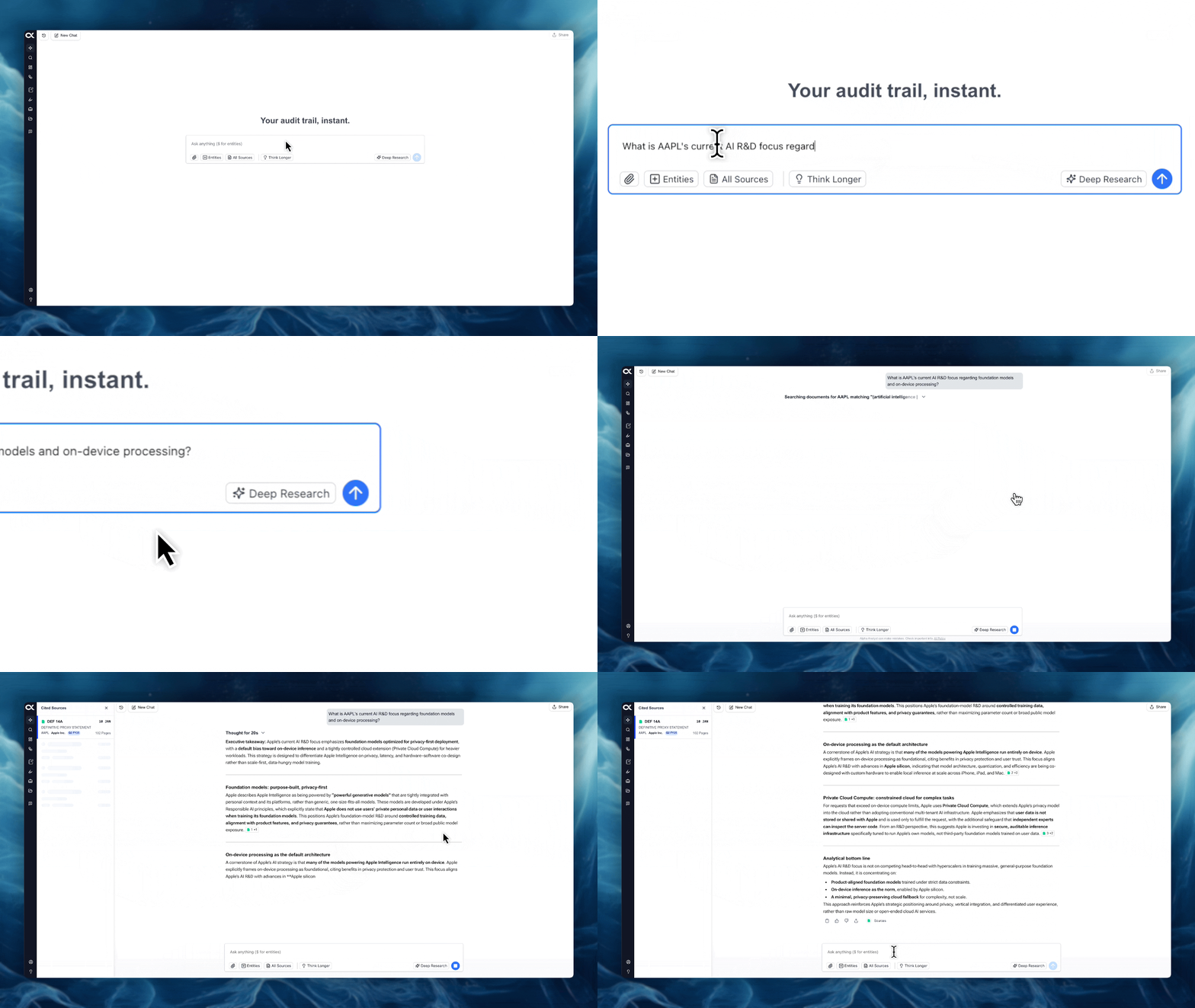
Once you have typed your research query, the Submit Chat button is your final step to initiating the AI analysis.
-
Function: Activates the AI analyst to begin searching and synthesizing information based on your input and the current filters applied.
-
Location: Always found at the bottom right corner of the chat input bar, appearing as a blue arrow pointing upwards.
-
Alternative Method: You can also press the Enter/Return key on your keyboard to submit the query, provided your cursor is active in the text input area.
Create a New Chat
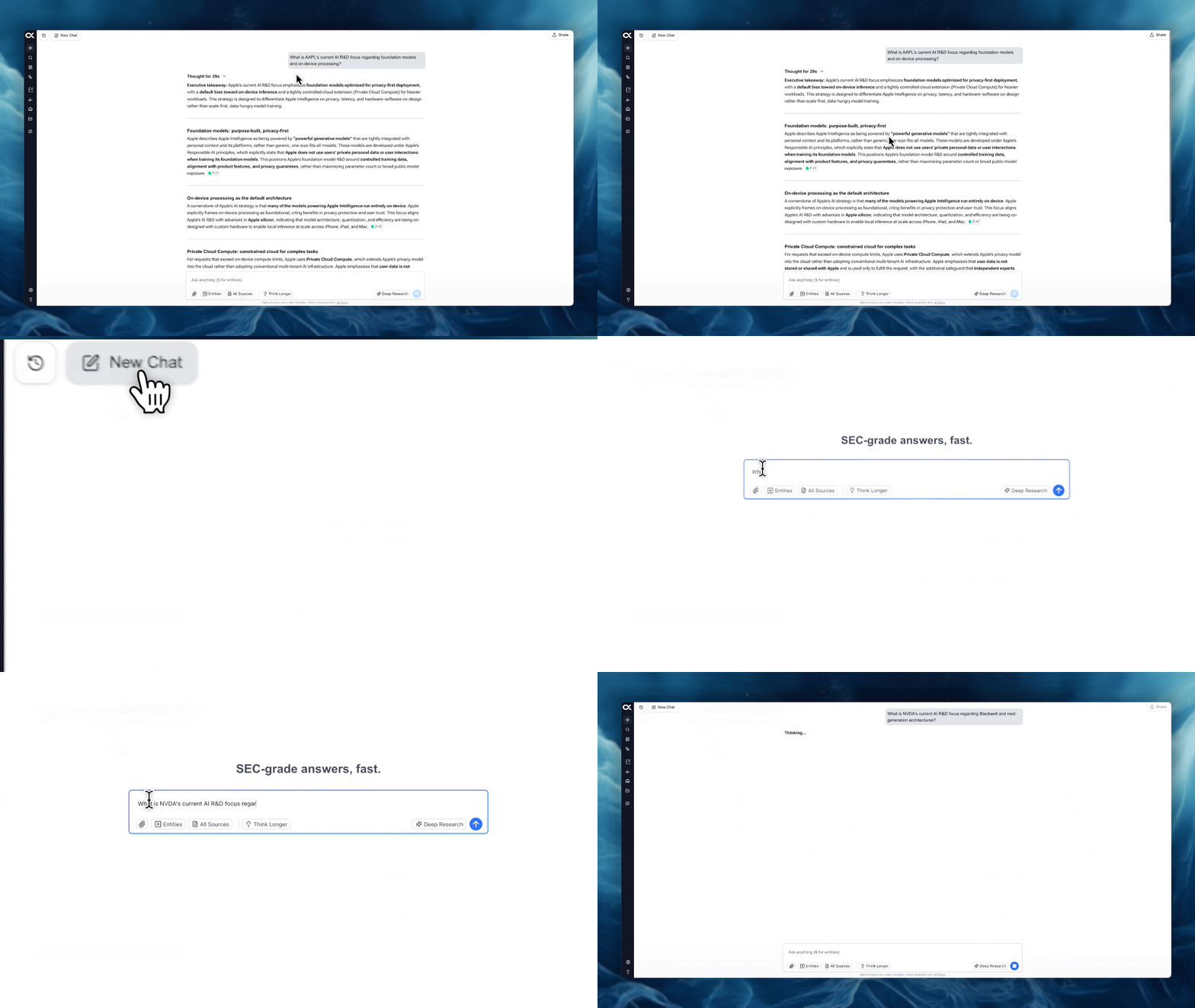
To start a fresh line of inquiry, clear the current context, or move to an entirely different research topic, you should start a new chat.
-
Function: Clears the current conversation thread and resets the chat window, allowing you to begin a new, uncontextualized query.
-
Location: Located prominently at the top left of the AI Chat interface, labeled "New Chat".
-
Use Case: Use this when switching from a detailed competitor analysis to a broad industry primer, ensuring the AI's response isn't accidentally influenced by the previous conversation's specific context.
View, Rename, and Delete Past Conversations
All your previous AI Chat sessions are automatically saved and easily accessible through the history menu.
-
Access History: Click the backwards clock icon in the top-left of the chat interface. This opens the Conversation History panel, which lists all your past chats.
-
Viewing Past Conversations: Clicking on any conversation title in the history panel will instantly reload the entire chat thread, including the original query, the AI's response, and all supporting citations.
-
Renaming a Conversation: Hover over a conversation title in the history panel. A pencil icon will appear, allowing you to assign a descriptive name (e.g., "AAPL Services Risks") instead of the default date/time stamp. This aids organization.
-
Deleting a Conversation: Hover over a conversation title in the history panel. A trash can icon will appear, allowing you to permanently delete the conversation from your history.