

How it works
The greatest strength of AI Chat lies in its control and transparency: you can precisely hone the scope of your query to get the most relevant, citable, and trustworthy results.
Unlike general-purpose AI, every answer provided by AI Chat is backed by sentence-level citations, ensuring your insights are grounded in verifiable source documents. Filtering allows you to control which documents the AI uses for its analysis.
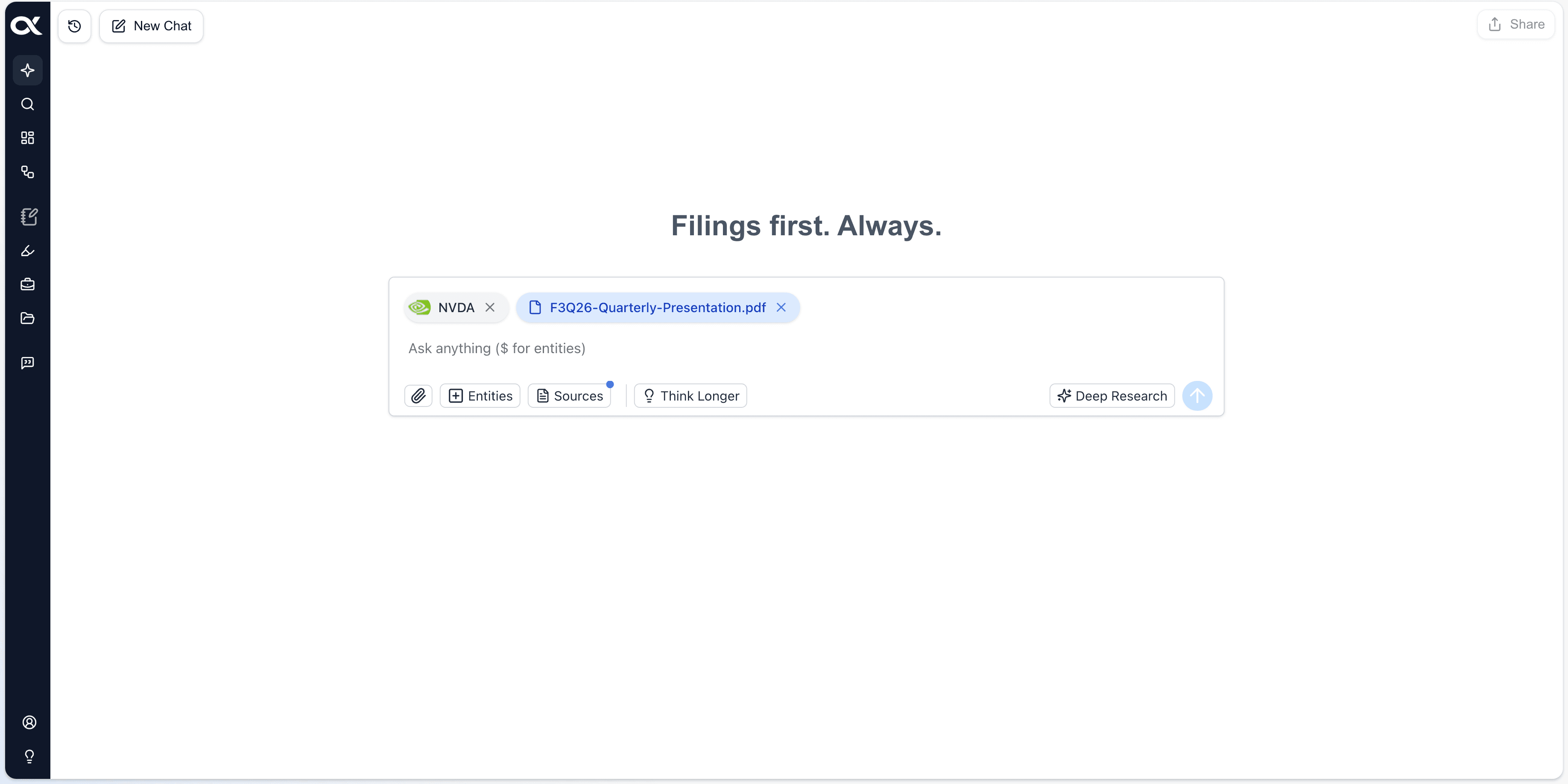
Filtering by User-Uploaded Documents
You can ensure the AI Analyst includes your proprietary research, internal memos, or private company data in its analysis.
-
Custom Files and Folders: Easily integrate content you have previously uploaded to your Files repository.
-
Targeted Analysis: By selecting specific folders or individual documents, you constrain the AI to a proprietary data set, allowing you to ask questions that leverage both public market information and your unique, non-public intelligence.
-
Use Case: Ask the AI to compare internal Q3 forecasts (from an uploaded Excel file) with public consensus estimates (from the Financial Database source).
Filtering by Specific Entities (Companies & Tickers)
Focus the AI's research on one or more specific companies, industries, or private entities.
-
The Entity Selection Button (+): Click the plus button (often located near the chat bar) to open a window where you can manually select and add one or more entities (public companies, private companies, industries, etc.) to your query scope.
-
The Ticker Symbol ($): While typing your query, you can instantly add entities by preceding the company name or ticker with a dollar sign (e.g., "$AAPL" or "$TSLA"). The platform will auto-suggest entities for you to select and include in the chat's context.
-
Benefit: This is essential for competitive analysis or deep dives, as it directs the AI to pull information only from documents tagged to those specific entities.`
Toggling Specific Source Types
You have granular control over the different categories of source material the AI can access. By default, all sources are toggled ON to provide the broadest context.
Available Source Categories to Toggle:

-
Company Filings & Documents:
- SEC Filings: Official regulatory documents (10-K, 10-Q, 8-K, etc.) for US-listed companies.
- EDINET Filings: Official regulatory documents for Japanese-listed companies.
- Files (User Uploaded): Documents from your personal or shared Files repository.
-
Market Intelligence & News:
- Web Search: Access to the latest market news and information from credible sources outside the core document library.
- News & Press Releases: Real-time news articles, media reports, and official company press releases.
-
Financial Data & Personalization:
- Financial Database: Contains structured financial data not directly found in company filings, such as analyst estimates, market performance metrics, historical valuation data, etc.
- My Account Access: Includes information from your personal setup, specifically Watchlists access (for quick entity reference) and Files & Folders access (same as user-uploaded documents above).
Pro Tip: Using the "ONLY" Filter
Instead of individually toggling off multiple sources when you want to focus on just one, use the "ONLY" button.
- Clicking "ONLY" next to a specific source (e.g., "SEC Filings") will automatically de-select all other sources, ensuring your AI answer is constrained exclusively to that source category. This is ideal for quick, forensic research.