

How it works
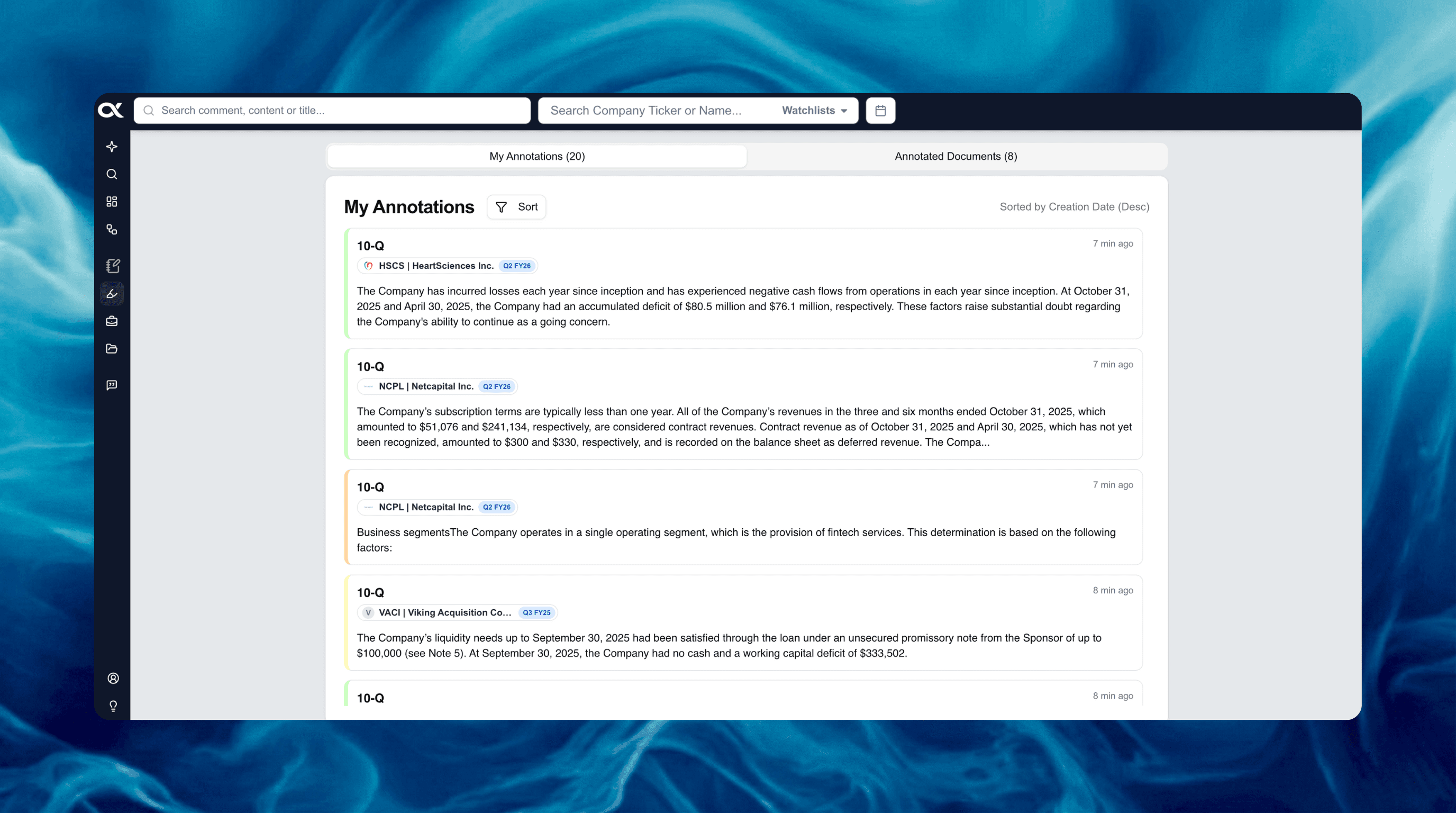
The Annotations feature serves as a centralized hub for all your research insights.
To efficiently manage potentially thousands of highlights and notes across both the "My Annotations" and "Annotated Documents" tabs, you can apply powerful filters for companies, dates, and keywords.
Filtering by Company or Watchlist
To focus your review on insights relevant to a specific set of entities, use the Company & Ticker Search bar at the top of the page.
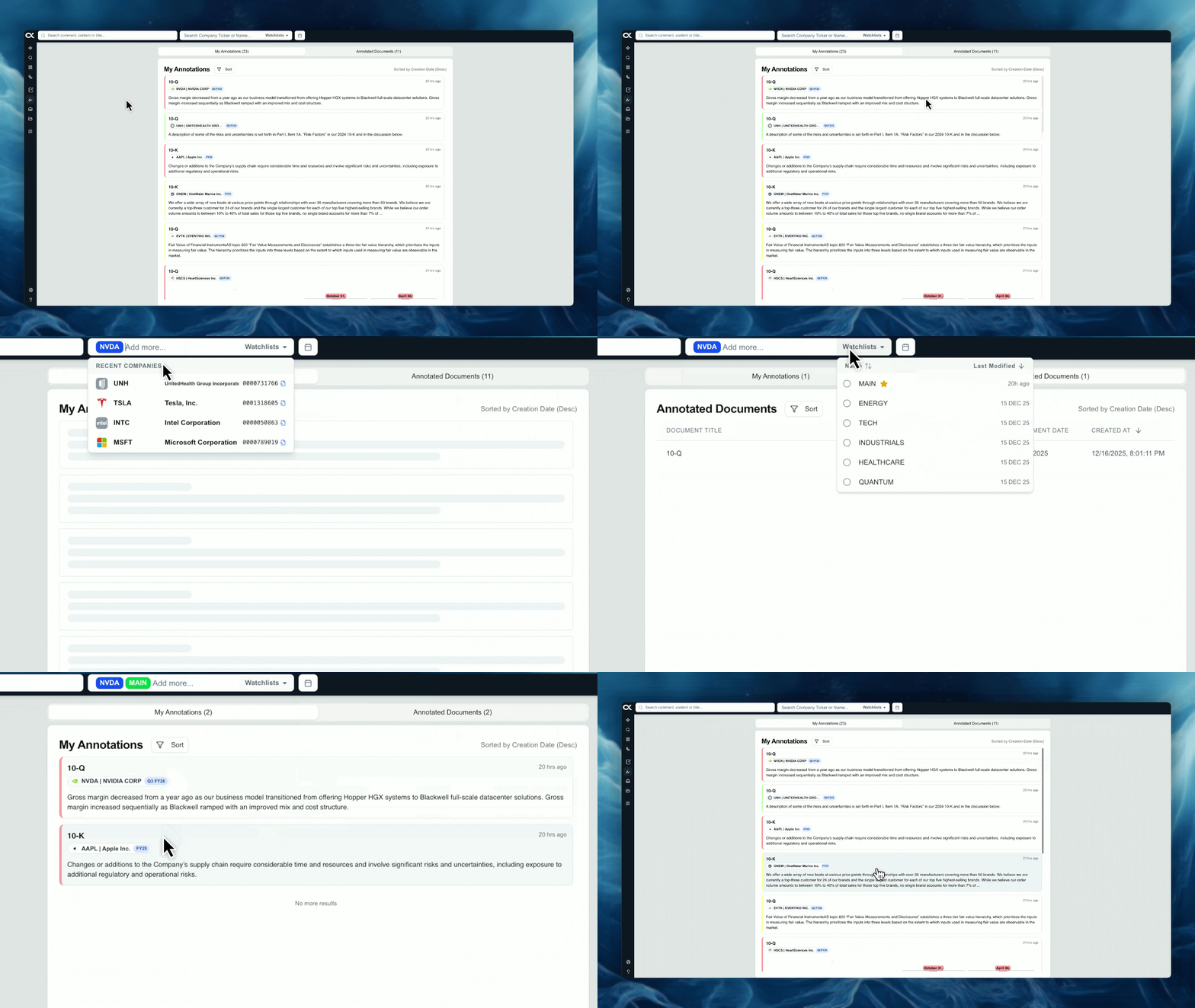
- Action: Enter specific tickers (e.g., $TSLA), company names, or any of your saved Watchlists into the Company & Ticker Search bar.
- Result: The list of results, whether individual annotations or entire documents, will be instantly constrained to only those tagged to the selected entities.
- Use Case: Quickly isolate all your team's notes on a specific peer group before a strategy meeting.
Filtering by Date Range
Filter your annotations based on when the source document was created/filed or when the annotation itself was made.
-
Action: Click the calendar button (📅) located at the top of the page.
-
Options: Select from predefined quick ranges (e.g., Last 30d, Last 6m) or choose a custom date range to focus on a specific time period relevant to your research project.
-
Benefit: This is useful for reviewing all notes taken during a recent quarter or only those on documents published in the last year.
Filtering by Keyword Search
Refine your results using specific keywords to find the exact note, highlight, or document title you need.
-
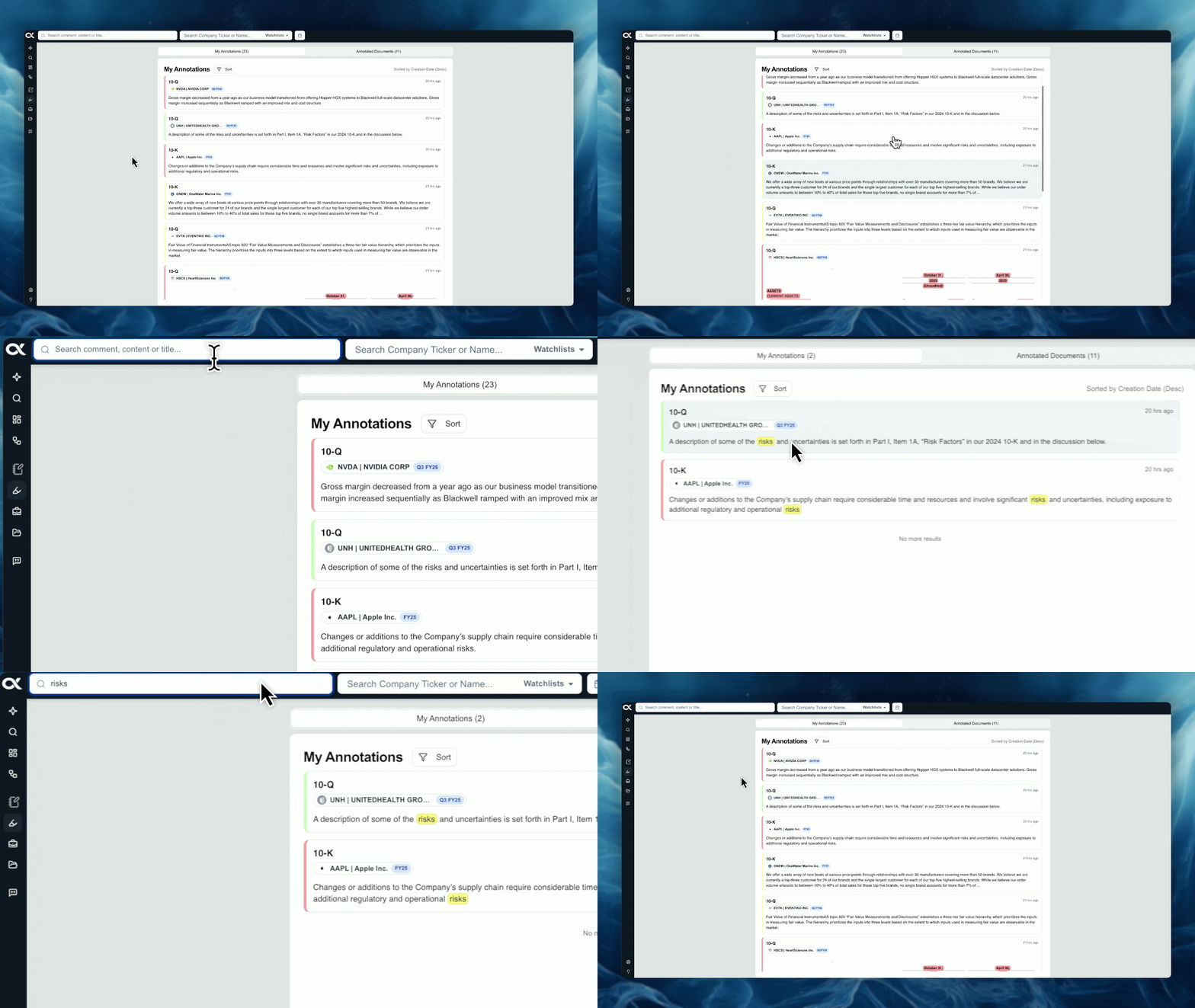
Action: Enter your desired keyword (e.g., "regulatory risks") into the search bar, typically located at the top left of the page.
-
Search Scope: Your keyword is applied across three areas:
- Comment: Searches the text of the personal note you attached to the highlight.
- Content: Searches the actual highlighted text itself.
- Title: Searches the title of the source document.
-
Result: Only annotations or documents matching your keyword in one of these three fields will be displayed.
Sorting Annotations and Documents
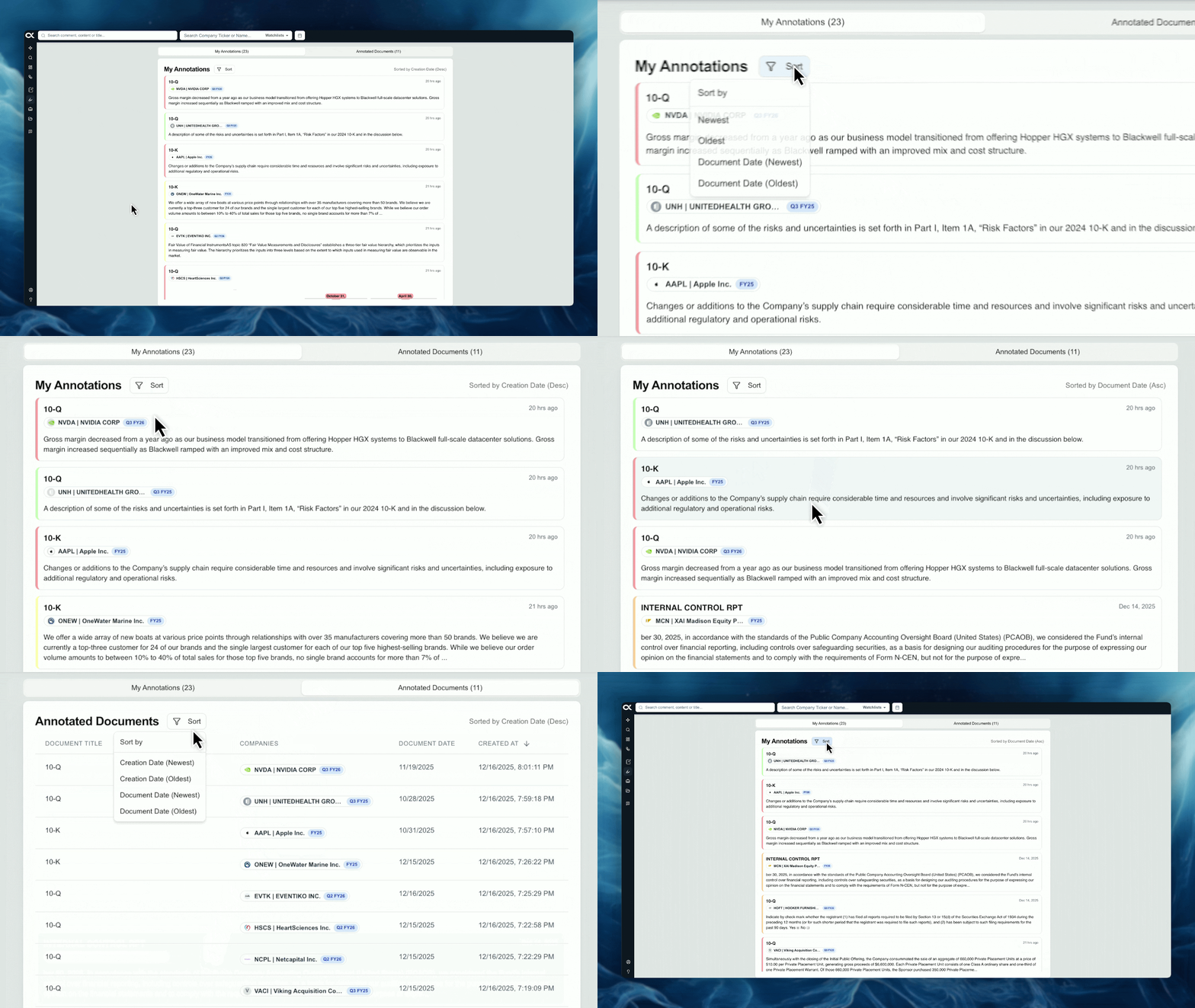
You can organize your results (both individual annotations and annotated documents) in ascending or descending order based on two key date parameters.
-
Annotation Date: Sorts based on the exact date and time the highlight or note was created.
- Newest/Oldest: View your most recently created notes first, or start with your oldest insights.
-
Document Creation/Filing Date: Sorts based on the date the source document was officially filed (for public documents) or uploaded (for personal files).
- Newest/Oldest: Review annotations starting with the most recent filings or by historically earliest documents.