
Turn Files Into Repeatable, Structured Analysis Pipelines
The Workflows feature allows you to automate multi-step research processes, such as comprehensive file analysis, using pre-configured AI modes. This guide covers how to create, execute, and manage the resulting workflow outputs.
Creating a New Workflow
To begin, you must select the type of workflow you want to run. Currently, only "File Processing" is available, with more types planned for the future.
Workflow Setup Choices (File Processing)
After selecting the workflow type, you will need to complete four required and optional fields:
- Run Title (Optional): Provide a name for your specific workflow execution. If left blank, the AI will automatically generate a title upon completion.
- Select a Mode (Required): Choose the analytical framework the AI should use. Available modes include:
- Company Analysis
- Sector Analysis
- Document Synthesis
- Custom
- User Prompt (Optional): Add specific, additional instructions to guide the selected mode and tailor the output to your precise needs.
- File Upload (Required): You must upload new files or select documents that have already been uploaded to the platform to serve as the base material for the workflow's analysis.
- Execution: Once all required fields are complete, click "Run Workflow" at the top of the interface to initiate the process.
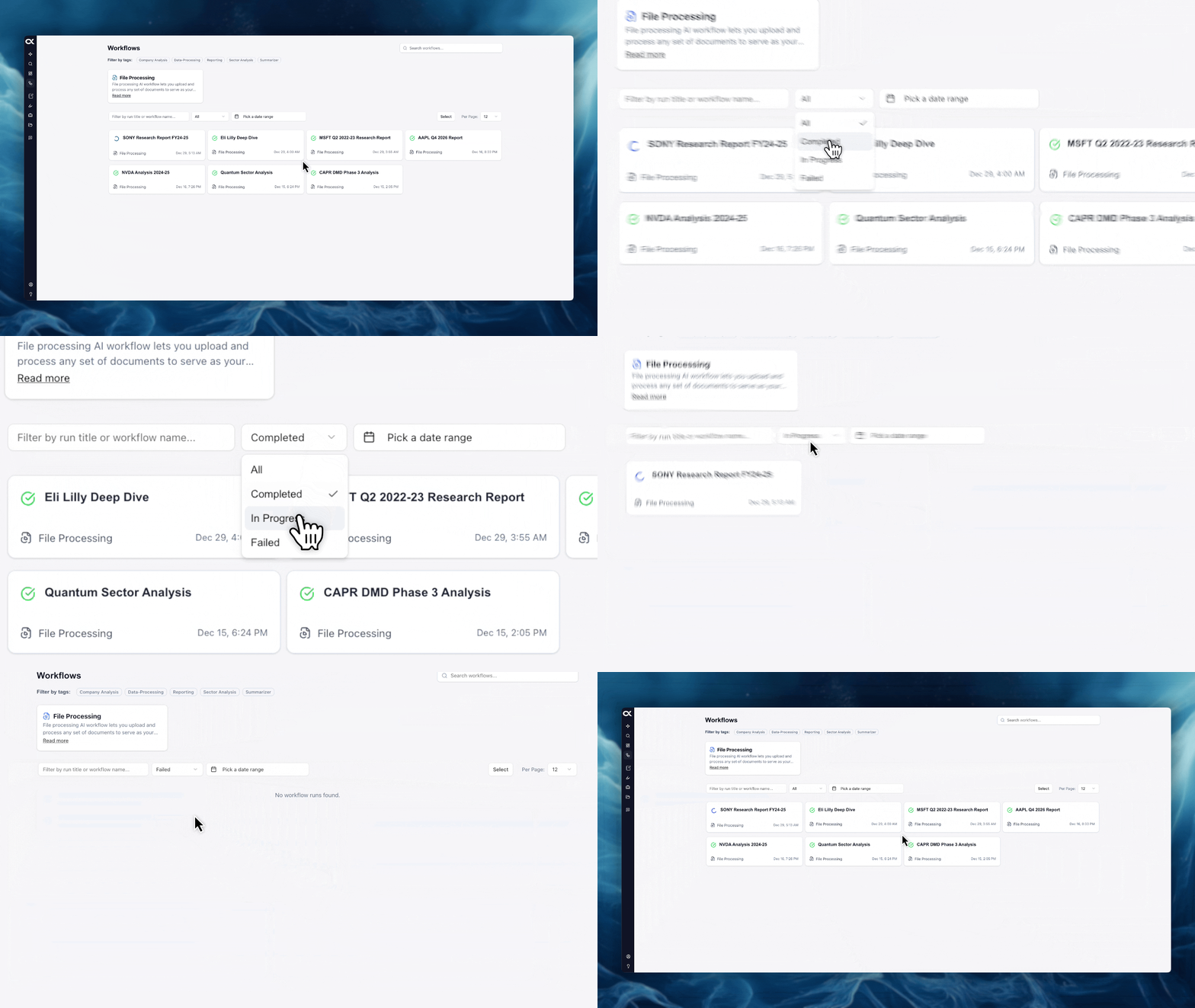
Understanding Workflow States
A workflow's current status is clearly indicated, allowing you to track its progress.
| State | Description | Action for User |
|---|---|---|
| Processing | The workflow is currently being processed by the AI. Output is not yet available. | Wait for completion. |
| Completed | The workflow analysis is finished, and the resulting output report is ready to be accessed. | Click the workflow name to view the results. |
| Failed | An error occurred during processing, and the workflow could not be completed. | Delete the failed workflow and create a new one, ensuring all inputs are correct. |
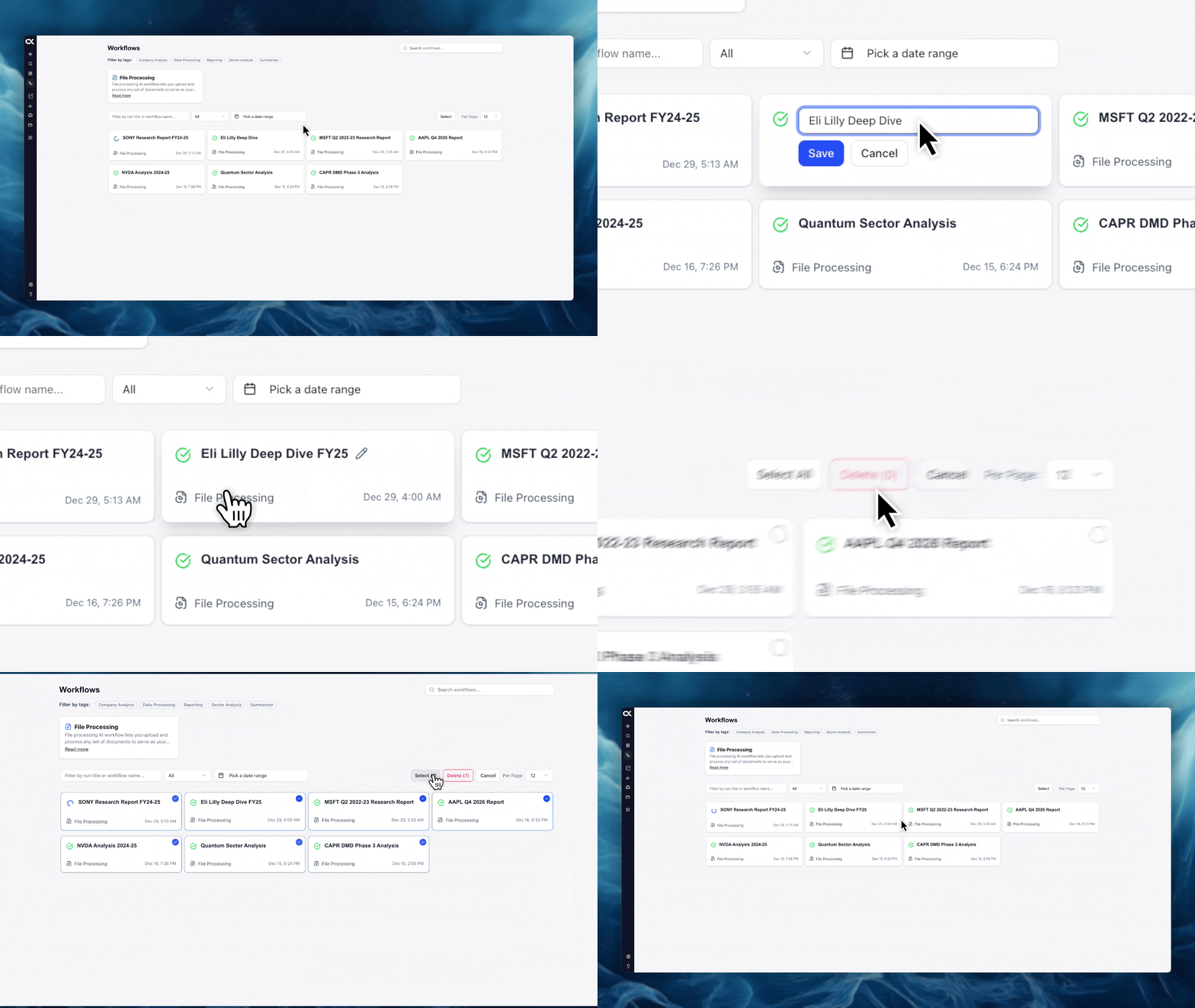
Managing Completed Workflows
Completed workflows can be organized and maintained through individual or bulk actions.
Renaming (Individual Management)
- Click the pencil symbol next to a completed workflow's name.
- Enter the new, descriptive name and save the change.
Deleting (Bulk Management)
- Click the "Select" button on the main Workflows page.
- Use the checkboxes to select the individual workflows you wish to remove (including any Failed workflows).
- Click the red garbage delete button to confirm deletion.