

Accessing the AI-Generated Report and Leveraging Its Research Value
Once a workflow reaches the "Completed" state ($\checkmark$), it transforms into a high-value, organized research report derived exclusively from your uploaded files. This sub-feature details how to view, export, and utilize these powerful outputs.
Viewing the Completed Workflow
To open the report, simply click on the name or title of a Completed workflow. A dedicated window will open, displaying the generated text and analytical findings.
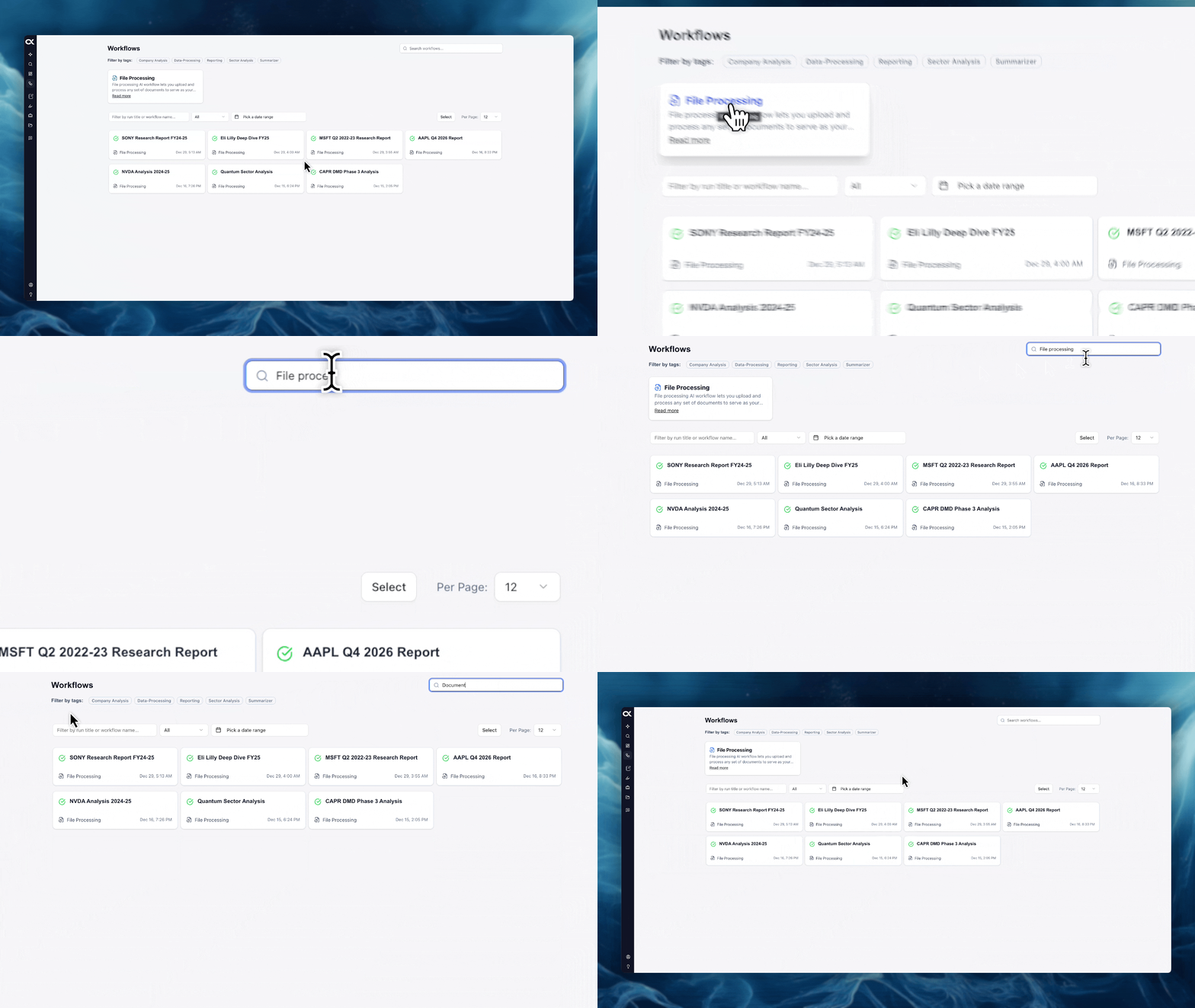
Run Details & Inputs (Dropdown)
At the top of the workflow window, a dropdown menu provides a complete audit trail of the run:
| Detail | Description |
|---|---|
| Status | Shows the final state (Completed $\checkmark$). |
| Date Started/Completed | The precise time stamps for the workflow's execution. |
| Run Title | The title you assigned (or the AI-generated title). |
| Mode Selected | The analytical framework chosen (e.g., Company Analysis, Sector Analysis). |
| User Prompt | The exact additional instructions you provided (if applicable). |
| Files Uploaded | A list of all documents that served as the base material for the analysis. |
Result of Workflow (The AI-Generated Report)
This is the core value proposition of the Workflows feature. The AI generates a structured document, much like a research report from a prime broker.
- Structure: The report typically includes an Abstract, a Table of Contents, and organized body text.
- Integrated Content: The report seamlessly combines text and images/charts that have been extracted directly from your uploaded files.
Data Integrity and Citations (Why Workflows are so Useful)
The primary power of the workflow lies in its complete traceability:
- Direct Citations: All facts, figures, and charts are cited directly in the text to the exact document they were retrieved from. This functions exactly like the citation feature in the AI Chat, but applied to your proprietary files.
- Side-by-Side Verification: Clicking a citation link within the workflow instantly opens the source document side-by-side with the workflow report, allowing you to see exactly where the information has been retrieved from and verify the context.
[Image Placeholder: GIF showing a user clicking a citation link within the workflow to open the source document side-by-side.]
Exporting and Integrating the Workflow
You have two powerful options for moving the generated report outside the Workflows window.
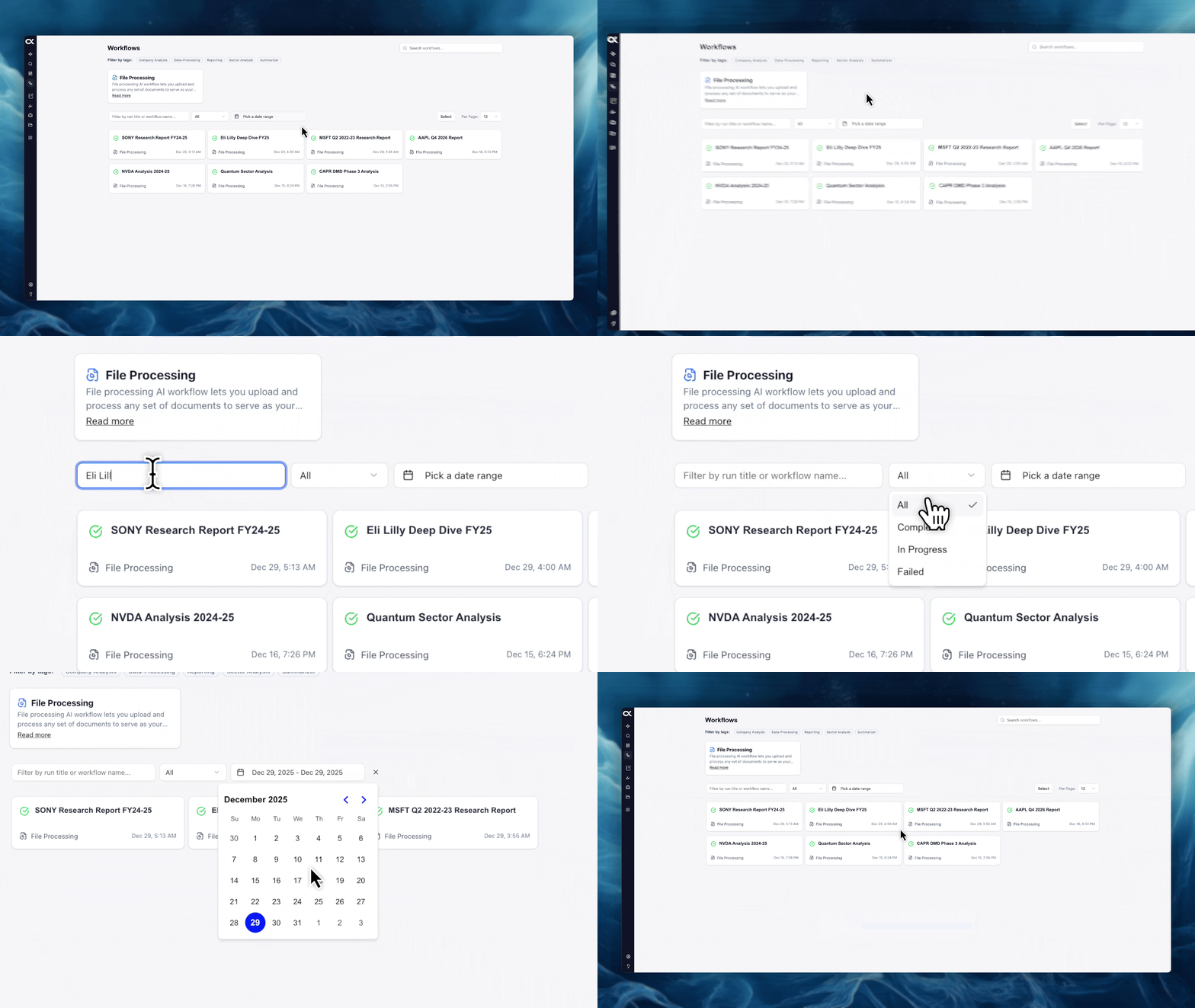
Download PDF Button
- Click the "Download PDF" button to instantly export the workflow text into a standard PDF format.
- Citation Persistence: All citations remain intact as clickable links within the PDF. Clicking these links will open the Alpha Analyst platform and take you to the source document, ensuring the report's data integrity is maintained even outside the application.
Re-uploading to User Files
If you wish to further leverage the platform's analytical tools on the generated report:
- Download the workflow as a PDF using the button above.
- Upload the PDF back into your User Files database.
- This integration allows you to:
- Search the workflow content using the main Document Search.
- Annotate sections of the report with your personal notes and highlights.
- Use the workflow content as input for future AI Chat prompts or even new Workflows.