

How it works
Watchlists are your central hub for curating, managing, and leveraging custom collections of entities relevant to your investment thesis. These entities can range from public and private companies to individuals and countries.
Creating a New Watchlist
Follow these steps to establish a new, focused collection of entities:
-
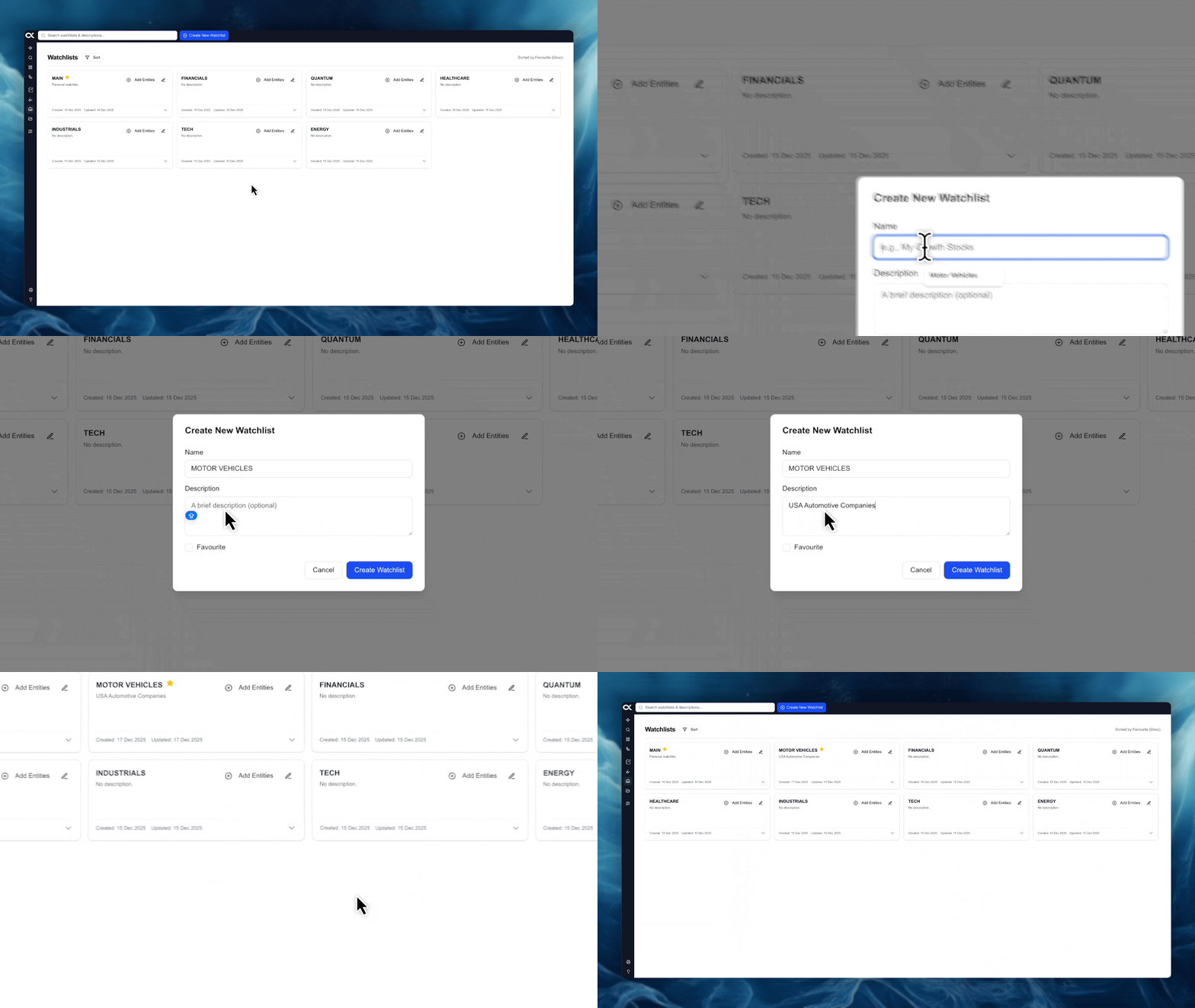
Action: Click the "Create New Watchlist" button, typically located at the top of the Watchlists interface.
-
Define Details: A pop-up window will prompt you to enter the following:
- Name: A required, descriptive name for the Watchlist (e.g., "Q4 Acquisition Targets").
- Description: An optional field to provide additional context or detail on the list's purpose.
- Mark as Favorite: An optional toggle. Selecting this will mark the Watchlist with a star, prioritizing it in your views and sorting options.
-
Finalize: Click "Create Watchlist" to save it, or "Cancel" to discard the entry.
Managing an Existing Watchlist
You can modify the core descriptive features, share the list with colleagues, or remove the list entirely.
-
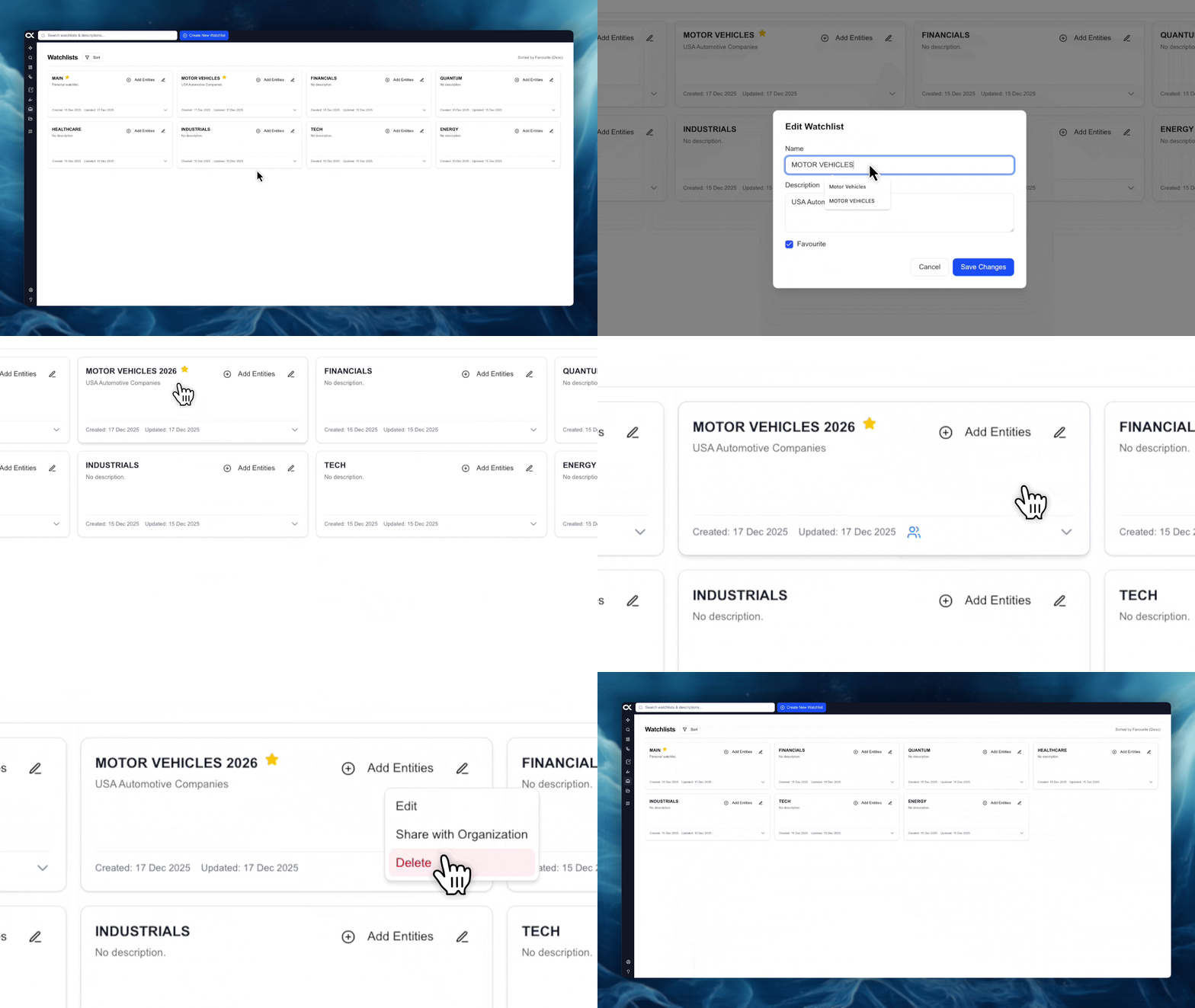
Action: Click the pencil located on an existing Watchlist tile or row to open the management menu.
-
Management Options:
- Edit: Allows you to change the Name, Description, and Favorite status of the Watchlist.
- Share with Organization: Toggles the visibility of the Watchlist, making it viewable and usable by all members within your organization.
- Delete: Permanently removes the Watchlist.
Adding and Managing Entities
Entities are the core components of your Watchlist, and you can add or remove them easily.
-
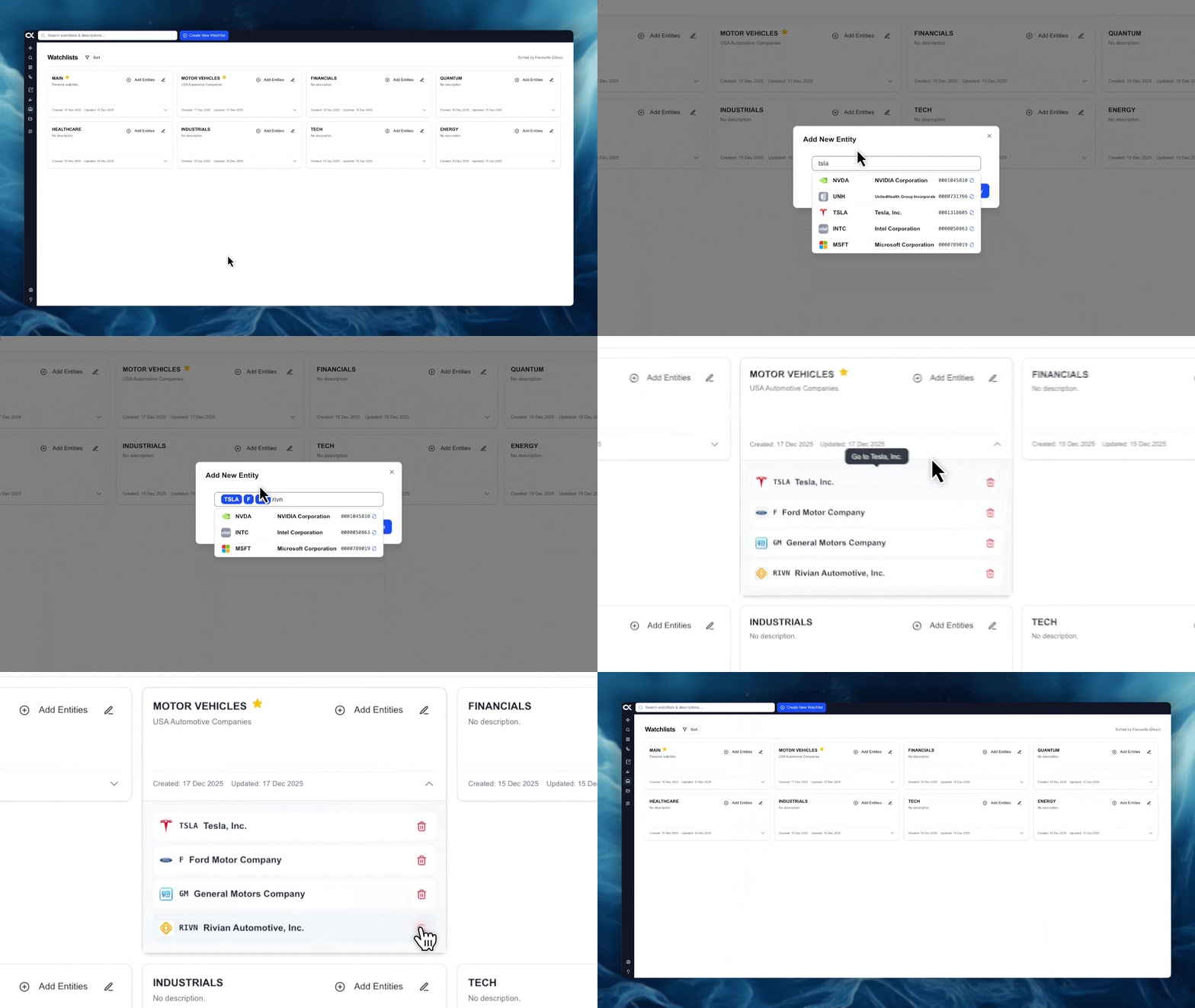
Adding Entities:
- Click "+ Add Entities" on the Watchlist view.
- You can manually enter and select as many entities (companies, individuals, countries, etc.) as desired.
- Future Capability: The platform will soon include the ability to import lists of entities from a file.
- Click "Add Entity" to finalize and add all selected items to the Watchlist.
-
Viewing and Deleting Entities:
- Click on a Watchlist's name or title to open a drop-down menu revealing all the entities currently included.
- To remove an entity, click the red garbage symbol next to its name within the drop-down list.