

How it works
Dashboards are designed to be fully customizable, allowing you to create a personalized, at-a-glance view of the companies and data points most critical to your investment thesis.
Customizability extends from managing your dashboard lists to arranging individual widgets.
Dashboard Sidebar: Manage and Create
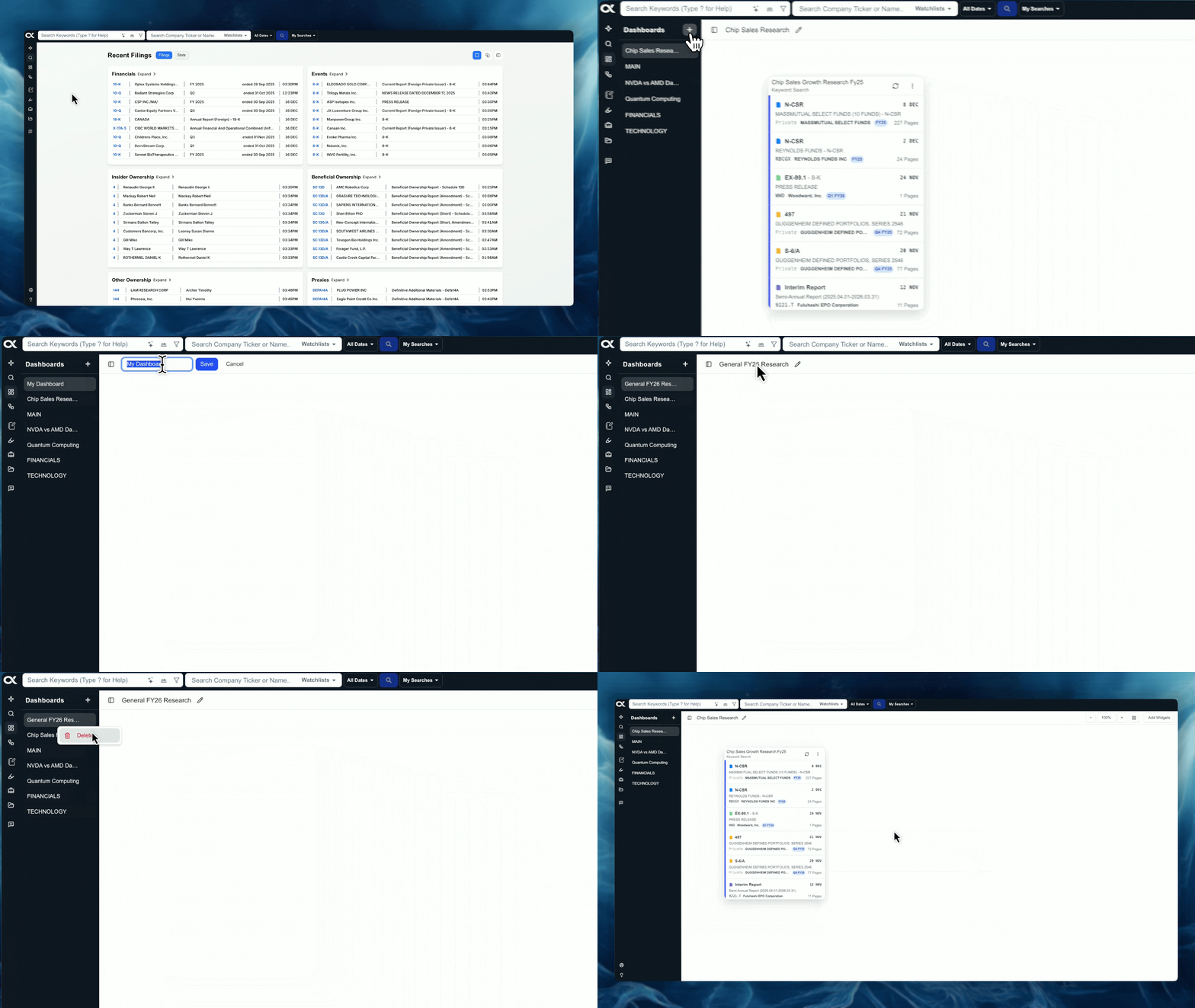
The sidebar acts as your central control panel for all your dashboards, both existing ones and new creations.
-
View and Manage Existing Dashboards: The sidebar lists all the dashboards you have created or have access to. Clicking a name instantly loads that personalized view.
-
Create New Dashboards: Easily initiate a new dashboard with a custom name to dedicate it to a specific project, sector, or investment thesis.
-
Delete Dashboards: Keep your workspace clean by deleting old or irrelevant dashboards directly from this management view.
Renaming the Active Dashboard
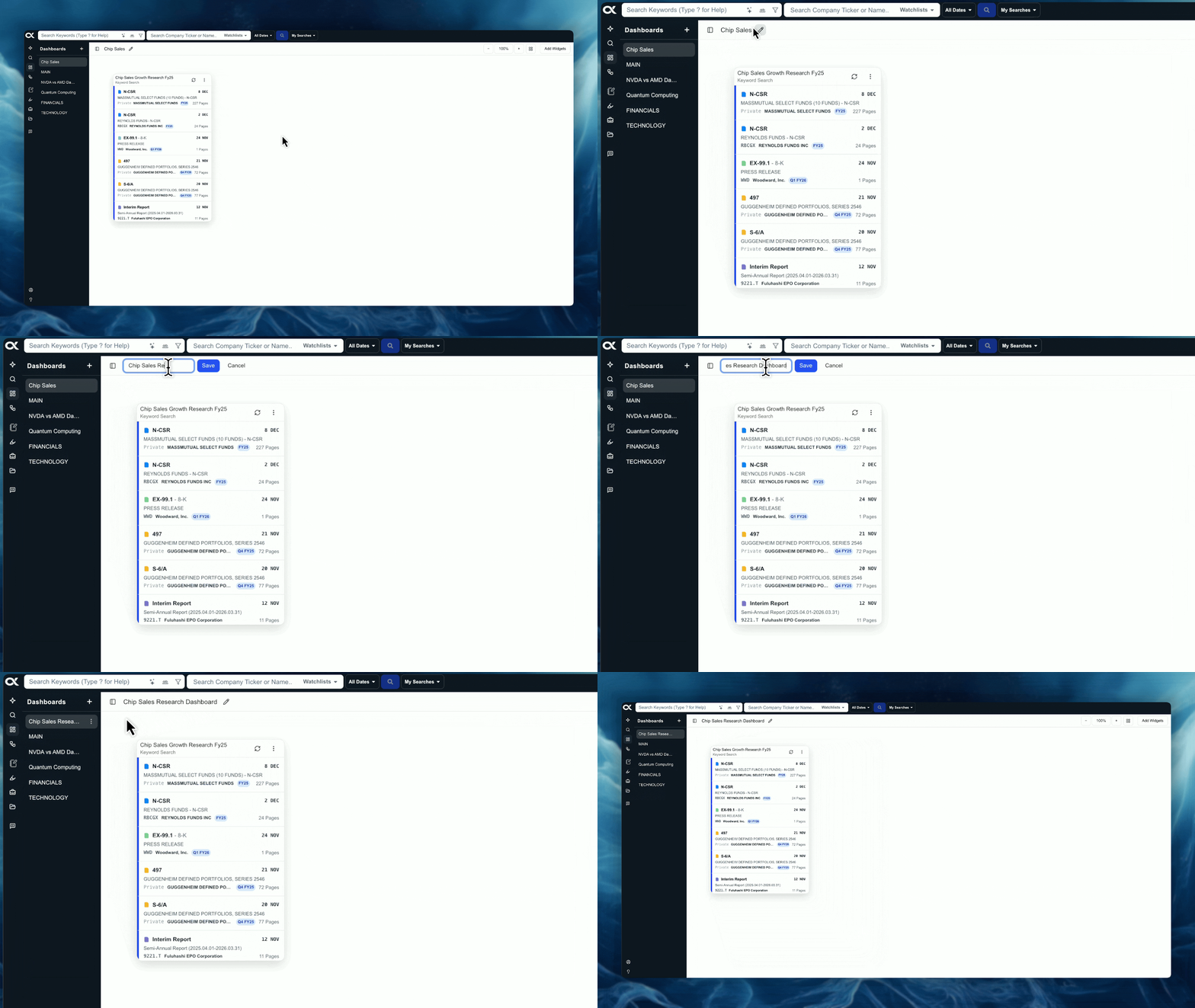
You can change the name of the dashboard you are currently viewing at any time.
-
Action: Click the pencil icon located immediately next to the dashboard's current name at the top of the screen.
-
Benefit: This is useful for quickly updating a dashboard's name as your research project evolves (e.g., changing from "Initial Tech Review" to "Q4 Software Competitors").
Widget Arrangement and Control
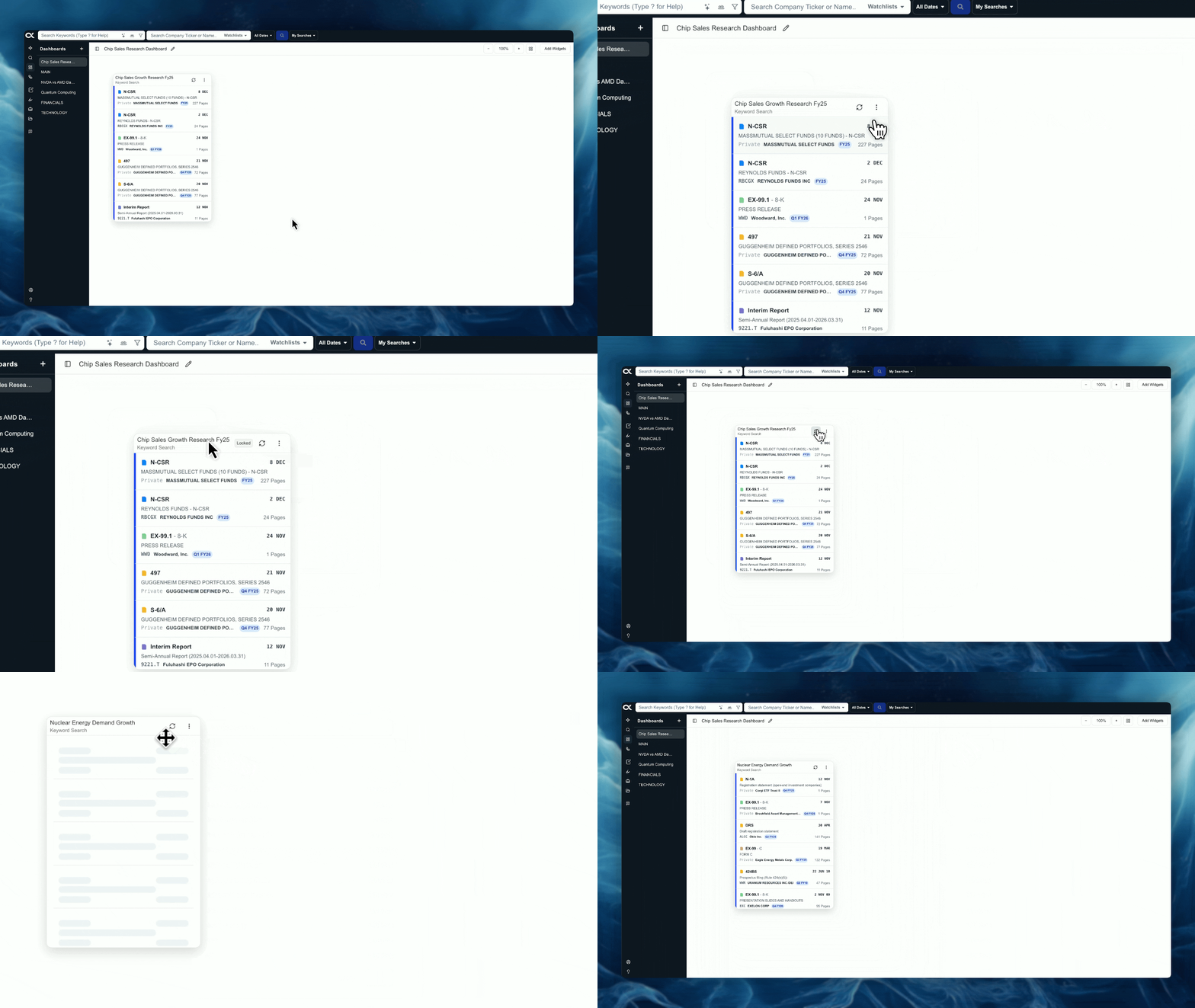
Widgets are the interactive information blocks (like Recent Filings or Keyword Search results) that populate your dashboard. You have complete control over their layout and content.
-
Full Layout Customizability: Use a simple drag-and-drop action to move any widget to any location on the dashboard. You can resize them and arrange them side-by-side to create tailored, comparative views.
-
Lock Widgets: Once a widget is perfectly positioned, you can lock it in place to prevent accidental movement while interacting with the data.
-
Refresh Widgets: Use the refresh button on the widget's title bar to manually pull the absolute latest data from the platform's index, ensuring you are working with the most current information.
-
Manage Widget Content: The manage button (gear icon) allows you to change the underlying criteria for the widget, such as adjusting the keyword search string or changing the companies/watchlists it monitors, without deleting and recreating the widget.
Display Options: Grid and Zoom
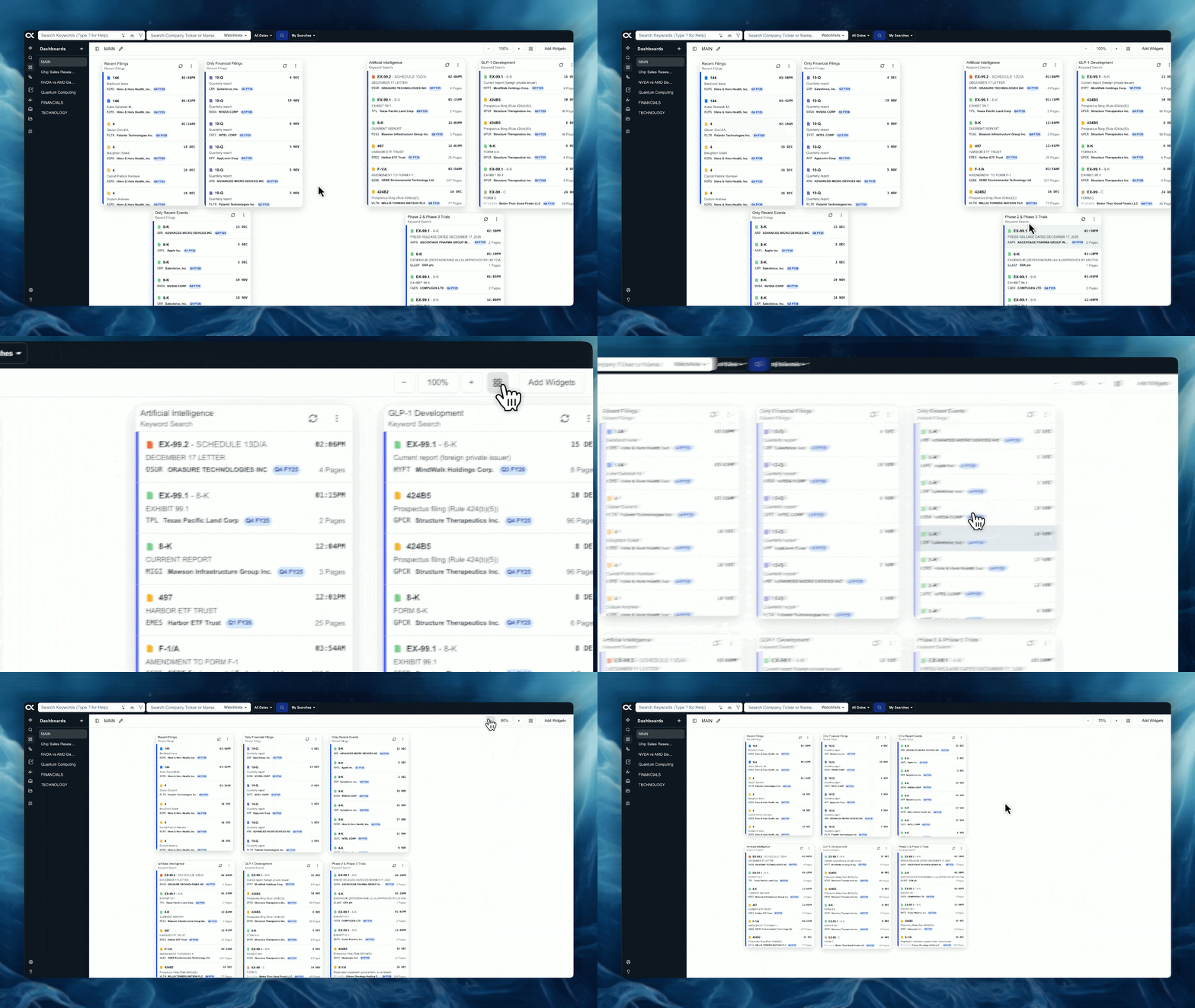
The top-right corner of the dashboard offers quick tools to adjust the overall view and organization of your workspace.
-
Grid Arrangement Button:
- Function: When clicked, the Grid button automatically arranges all current widgets on the screen into a neat, grid-like fashion.
- Benefit: This is a quick way to restore order or optimize space if your custom arrangement has become cluttered.
-
Zoom In/Out:
- Action: Use the Plus/Minus buttons (+ / -) to adjust the viewing size of your entire dashboard.
- Use Case: Zoom out to see more widgets at a glance on a large monitor, or zoom in for a presentation focus on one or two key data points.